
How to Submit a Grade Change Request
Access to the Grade Change Workflow is found through FlashLine, on the Faculty Dashboard. Select the Grading Resources menu, then the Grade Change Workflow.
Click the Create button at the top of the Grade Change Dashboard to create a new workflow request.

If you are an instructor, select the term in which the course was taken for the grade you are requesting to change. Then select the section. The course information will automatically populate once term and section have been selected from the drop-down lists.
If you are submitting a request on behalf of an instructor, you will be prompted to enter the primary instructor’s information before selecting the term.
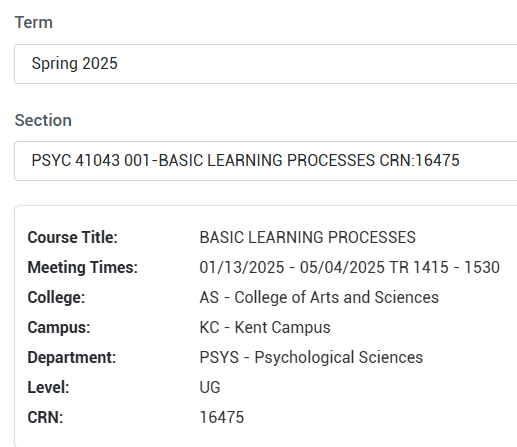
Select the student in need of grade change from the student drop-down menu. The student’s current reported grade will automatically fill in. Select a new grade.
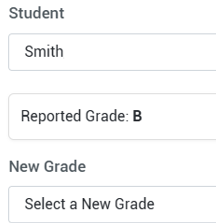
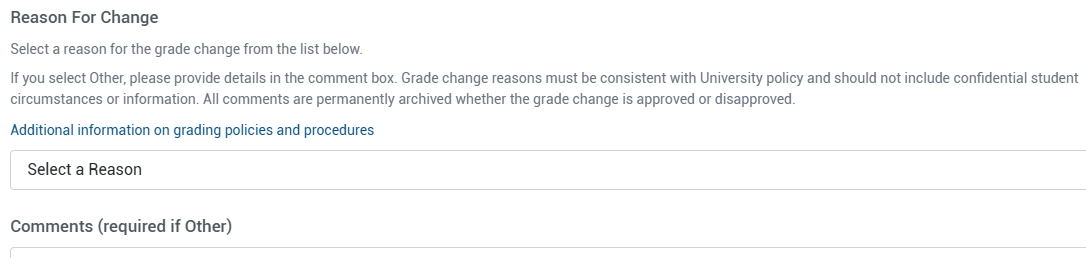
A Reason for Change is also a required drop-down item. Comments can be provided for any reason, but it is a required field if the Reason For Change selected is “Other”.
Check the box to certify that the policies have been read and understood.

Click the Submit button at the bottom of the page to send the request through the workflow. If all required fields have been completed, a confirmation message will indicate that the request has been accepted.
For Approvers
If you need to submit a request on behalf of an instructor, please follow the instructions above.
You will receive an email when a request is submitted that requires your approval. You will also be able to check your queue in the Grade Change Workflow queue.
You will have the option to approve, deny, or cancel requests in your queue. Select the appropriate option from the left side of the request screen. A comment box will open. Comments are optional for approved requests and required for denied and cancelled requests.
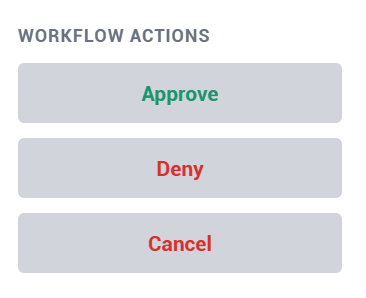
Click Submit in the comment box to submit your decision. You will receive an email letting you know that your decision has been recorded.
For More Information
Grading FAQs can be found on the Faculty Grades Processing page.
For assistance, email the Registrar’s Office at recrdsvc@kent.edu
