PDF & File Management Guidelines
Please note: This web page is dedicated to making PDFs on websites accessible to meet the Department of Justice digital accessibility mandate. There are other web accessibility basics and requirements, such as use of proper headings, alt tags and link text.
Access general web accessibility requirements.
The U.S. Department of Justice has issued new accessibility mandates requiring all public university digital content to meet compliance standards by April 24, 2026. This includes web pages, PDFs, other digital files and any content to which we link on third-party websites.
While we're here to help you meet this deadline, our broader goal is to make Kent State's web content more accessible, user-friendly and discoverable for everyone.
Manage and Remediate Your Files
Once you've identified which files to keep, delete or remediate, you'll need to follow the proper processes to ensure everything is handled correctly. The sections below cover the essential procedures for file management and accessibility compliance.
Strategy & Policy
Start here to understand the goal and the rules.
-
Why Web Pages Are Usually Better Than PDFs
Before uploading a PDF, ask yourself: could this content work as a web page instead?
Here's why we recommend web pages whenever possible:
- Accessibility: Web pages work better with screen readers and other assistive technologies. They're also easier to navigate for users with disabilities.
- Mobile experience: PDFs require pinching, zooming and awkward scrolling on phones and tablets. Web pages adapt automatically.
- Search visibility: Search engines rank web pages higher than PDFs, which means your content is more likely to be found.
- Maintenance: Updating a web page is straightforward. With PDFs, you have to upload a new file, update links and hope no one bookmarked the old version.
- Analytics: You can track how people use web pages through Google Analytics. PDFs only show downloads, so you can't evaluate how users actually engage with the content within.
If your content is text-heavy, gets updated regularly or is under a few pages long, it should almost always be a web page rather than a PDF.
-
How to Find, Audit and Evaluate Your Files - Decision Tree
Now is the time to audit the files on your site. Determine who in your department will lead this effort and who will contribute.
How to Get Started
- Request a content export by submitting a ticket.
- Evaluate all PDFs and other files on your site.
- For each file, ask: Do I need this?
Decision Tree
Decision File use case What to Do Notes No → No longer needed - Review University Libraries Special Collections and Archives guidelines for transferring content. If it qualifies, work with their team to transfer.
- Delete the file from the website and remove all links leading to it.
Follow proper deletion steps (below). Yes → Determine which category: Historical internal document Move to your department's shared drive or server. Do not host internal files on public websites. Public historical document - Flag it for the upcoming website PDF/Document Archive; and/or
- Consider if you could instead transfer the content to University Libraries Special Collections and Archives.
- If so, thereafter, delete from the website and eliminate links leading to it.
- Convert using the convert tool and flip to Resolved in your tracking grid.
The web archive process will open January 2026. Files created after April 2026 will not qualify as historical. Read the full overview and fact sheet here. The rule includes specific exceptions for certain types of content, including archived web content.
You may choose to convert your pdf to an archived pdf if it meets the following criteria:
- The content was created before April 24, 2026, AND
- The content is kept only for reference, research or recordkeeping, AND
- The individual uses the pdf archive content type function made available by UCM and IT.
Active, current document Make it accessible now using Word or Adobe remediation tools—or better yet, convert it to a true web page. All new documents after April 2026 must meet full accessibility standards. About archive options
- The DOJ rule includes exceptions for archived web PDF content, meaning older documents that are no longer actively used can be preserved for historical reference without full remediation if they meet all four exceptions. This allows us to focus accessibility efforts on current content while maintaining access to historical records through the upcoming website PDF/Document Archive.
- Alternatively, webmasters can review University Libraries Special Collections and Archives guidelines for transferring content. If the file(s) qualify, work with their team to transfer and then delete the file from your website, as well as any links leading to that file that is removed.
Auditing Your Content
Choose the audit method based on where your file lives and/or your pages may link.
-
www.kent.edu: Audit 'File' Content Types
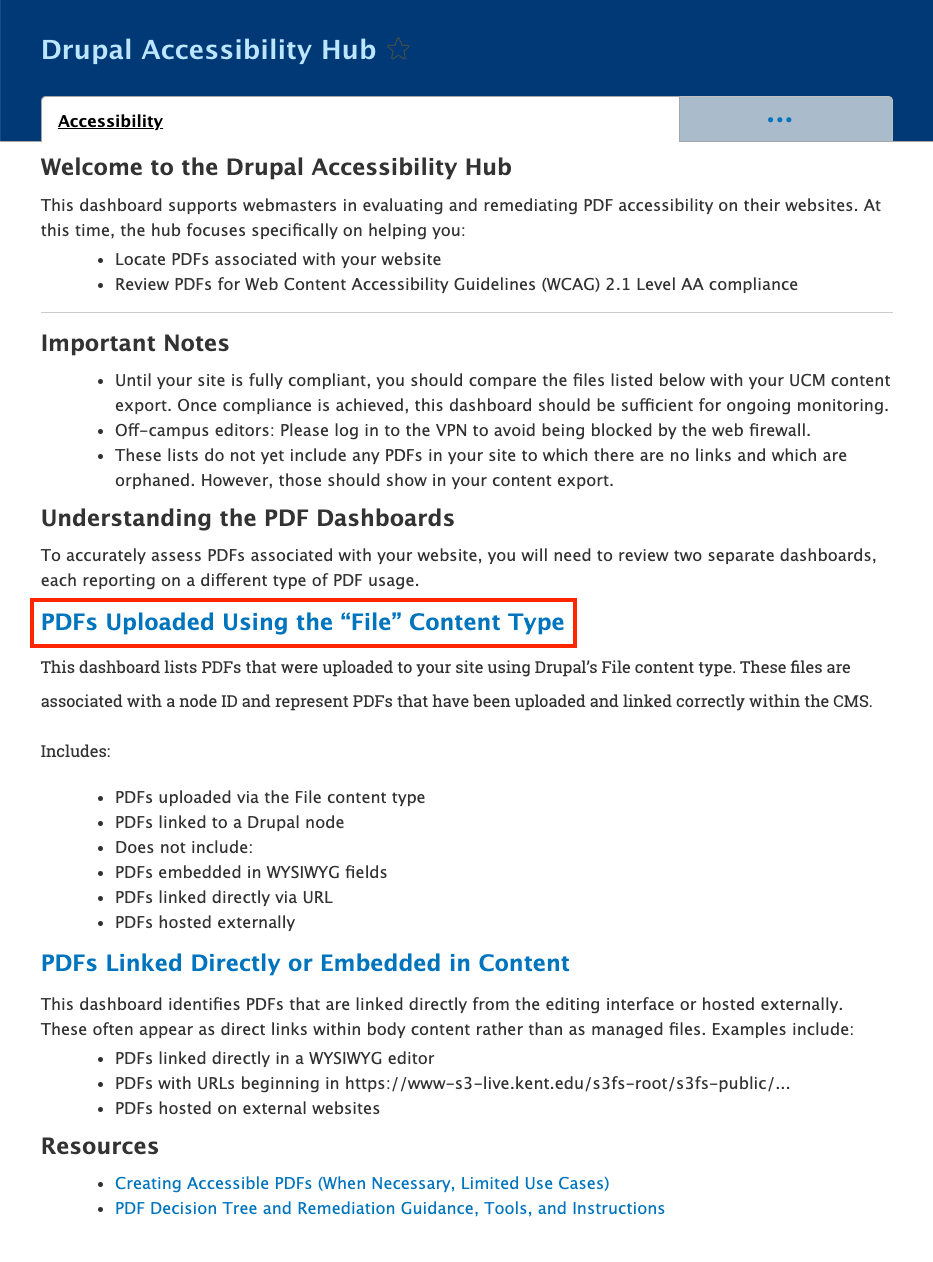
The Accessibility Hub provides two ways to track and audit PDFs on your site:
PDFs uploaded using the 'file' content type — These are PDFs properly uploaded through Drupal's File content type and linked to a node ID. This is the recommended approach and what this tutorial covers.
PDFs linked directly or embedded in content — These are PDFs that were linked directly in WYSIWYG editors or hosted externally (often appearing as
https://www-s3-live.kent.edu/s3fs-root/s3fs-public/...URLs). A separate dashboard tracks these files.This tutorial focuses on auditing PDFs uploaded using the file content type.
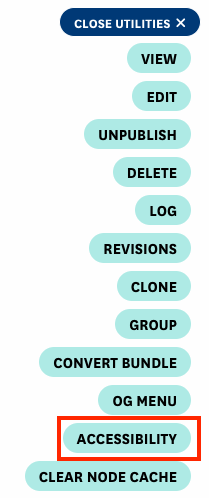
Navigate to your group's homepage and click the Open Utilities button.

From the utilities pop-up menu, select Accessibility.
You'll be directed to the Drupal Accessibility Hub for your group. Click on the "PDFs uploaded using the 'file' content type" link.
You'll see a table listing all PDF files created using the "file" content type. Each row displays the node ID (links to the edit page), filename, and an Audit PDF link. Once a PDF is audited, results appear in the Summary column.
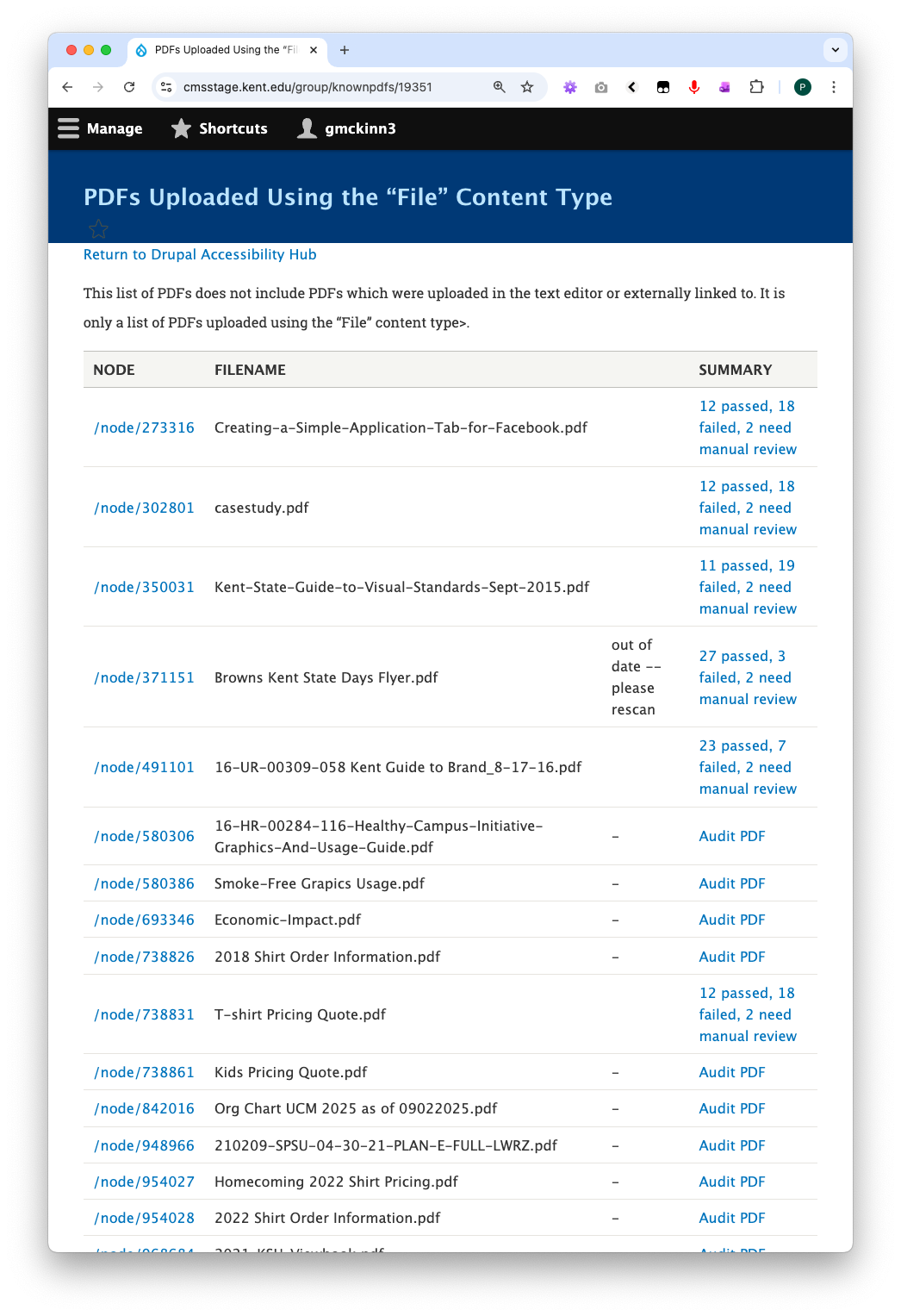
Select a PDF and click Audit PDF.
On the Audit PDF page, if no accessibility report exists yet, you'll see a message indicating this.
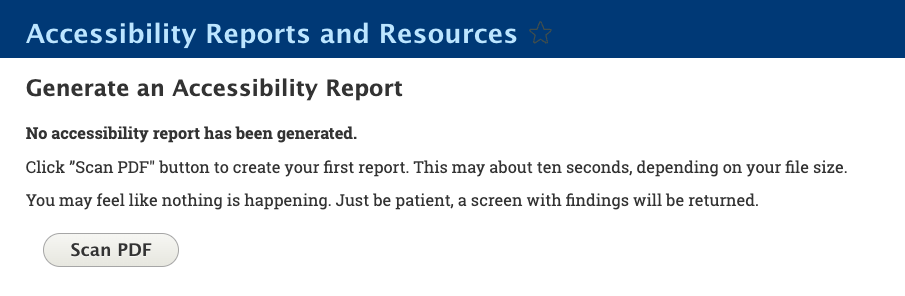
Click the Scan PDF button to generate a new report. Report generation typically takes several seconds depending on file size.

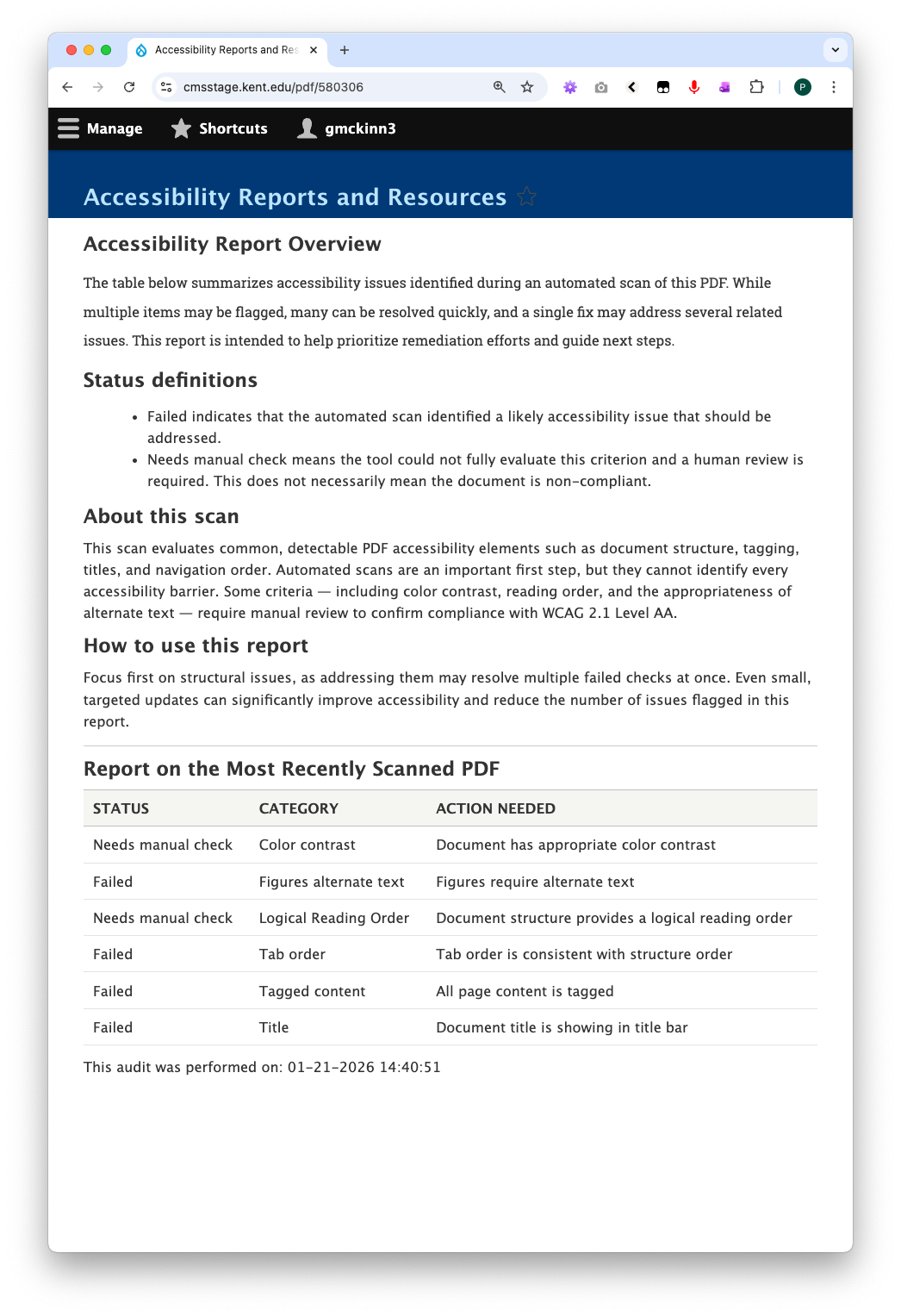
After scanning, results display in a table showing only issues that need attention. Failed tests and manual checks required are flagged for your review. Passed tests are not displayed in the table.
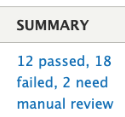
When you return to the PDF files table, scan results appear in the Summary column. Click any summary link to view the full report.
To update a PDF: Click the node ID link in the first column to access the edit page, upload the corrected PDF file, and return to the PDF files table. You'll see a notification that the audit is out of date. Click Audit PDF again to generate a new scan with the updated file.
-
www.kent.edu: Audit Direct & Embedded Links
The Accessibility Hub provides two ways to track and audit PDFs on your site:
PDFs uploaded using the 'file' content type (separate tutorial) — PDFs properly uploaded through Drupal's File content type and linked to a node ID. This is the recommended approach for new uploads.
PDFs linked directly or embedded in content — These are PDFs that were linked directly in WYSIWYG editors or hosted externally (often appearing as
https://www-s3-live.kent.edu/s3fs-root/s3fs-public/...URLs). This tutorial covers how to audit these files.This tutorial focuses on auditing PDFs linked directly or embedded in content.
Navigate to your group's homepage and click the Open Utilities button.
From the utilities pop-up menu, select Accessibility.
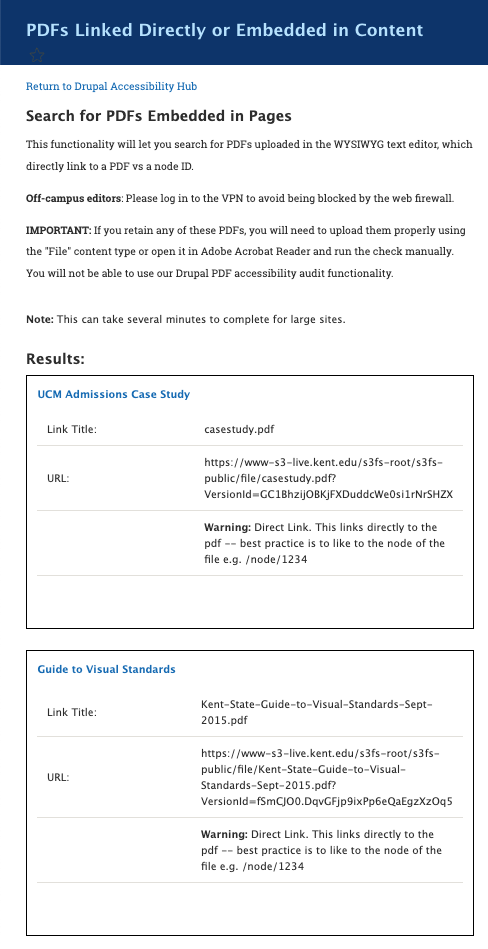
You'll be directed to the Drupal Accessibility Hub for your group. Click on the "PDFs Linked Directly or Embedded in Content" link.
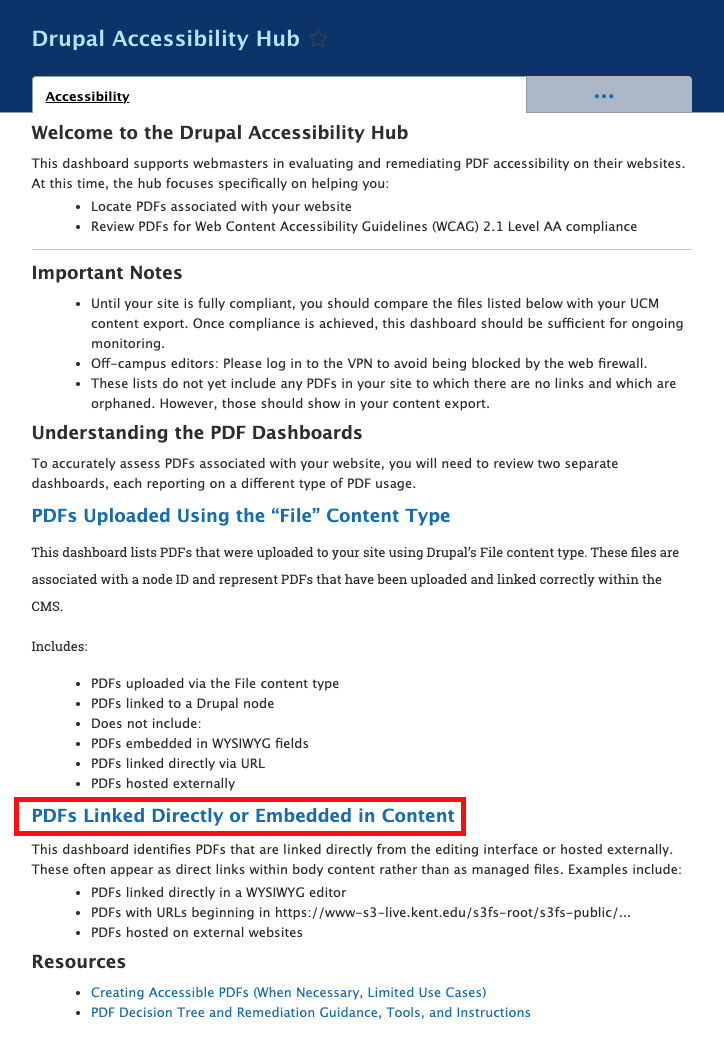
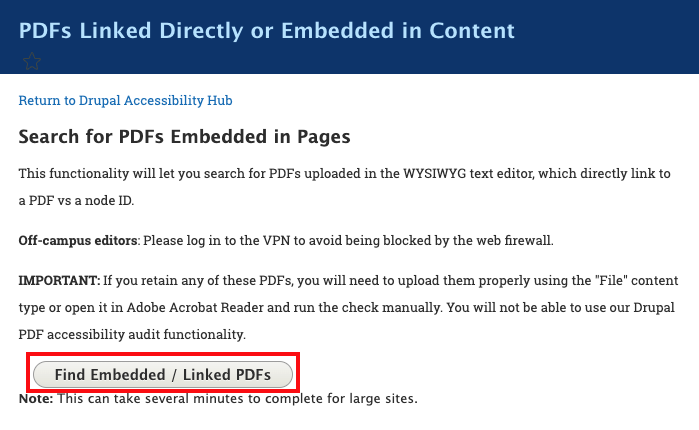
- On the next page, click Find Embedded / Linked PDFs
- Wait for the processing to complete
- Once complete, you will see a listing of all such PDFs on your site.
-
External Sites: How to Audit Non-Drupal Websites
Initial Setup
- Pick pages to test: Start with the home page, then test key templates including top landing pages, a form page, a news/article page and a program/detail page.
Manual Testing
- Keyboard navigation: Press Tab through all interactive elements from the top of the page. Confirm you can reach everything clickable, focus indicators are clearly visible, tab order follows visual reading order and all buttons/menus/forms work from the keyboard. Test on both desktop and mobile/responsive views.
- Visual scan: Check for sufficient color contrast between text and background, proper text alignment and spacing with no overlapping content and verify headings that look like headings are actually marked up as headings.
- Zoom and reflow: Zoom to 400% and confirm content reflows without breaking layout and there's no horizontal scrolling for normal reading (tables and maps may be exceptions).
Image and Content Checks
- Alt text: Open Developer Tools/Inspector, select images and confirm meaningful alt attributes are present (or empty alt for decorative images).
- Heading structure: In DevTools, open the document outline or headings view. Confirm headings are present and properly nested with no skipped levels.
- Text spacing: Use a text spacing plugin to confirm that increasing spacing and font size doesn't break content or prevent users from reading and operating the page.
Automated Tool Checks
- Run multiple tools: Use WAVE to identify errors and check contrast and Siteimprove browser plugin to catch additional issues. Each tool finds different problems, so use more than one.
- Note: Automated tools can miss issues or report false positives. Always combine automated checks with manual testing.
Embedded Content
- Embeds and iframes: For Instagram feeds, framed widgets, videos and similar content - confirm you can tab into and out of the embed without getting trapped and that all controls are reachable and properly labeled.
-
External Sites: Tools for Your Audit
If your site isn't hosted on www.kent.edu (e.g., custom applications or subdomains), it won't be included in our Siteimprove contract. However, there are free tools you can use to check for accessibility and SEO issues:
Manual keyboard testing - The easiest accessibility test: navigate your site using only a keyboard (TAB to move, ENTER/SPACE to activate). Focus should always be visible and move sequentially.
- Important reminder: Automated checkers won't verify if image alt text is truly descriptive, if content is responsive or if vendors are receptive to accessibility feedback.
Automated checkers
Siteimprove Browser Extension
A free browser plugin that scans for accessibility issues and highlights them directly on your page.- Note: This tool focuses on accessibility only and doesn't include the customized dashboards available in the full Siteimprove product.
WAVE (Web Accessibility Evaluation Tool)
A browser plugin that checks for accessibility issues, structural information, tab order and color contrast. It also gives pages a score between 1-10.- Note: A high score does not guarantee full accessibility - manual testing is always necessary.
Web Developer Tool
Makes it easy to view heading structure, show image alt text information and verify code.Note: Automated checkers are not always accurate. Each tool will find different issues and sometimes miss what a manual check will catch, so it is important to combine manual and automated checks.
For Developers
Axe DevTools
A browser extension that connects to Developer Tools and runs accessibility checks directly in the code, providing guidance on how to fix issues. -
Using Siteimprove to Find Where Files Are Linked
Step 1: Create a New Policy in Siteimprove
- Open Siteimprove.
- Navigate to the Policies section in the left-hand menu.
- Click the purple "Create Policy" button.
Step 2: Open the Content Policy Category
- Once you are on the Policy Categories page, locate the "Content" tab at the top.
- Select the tab labeled "Content."
Step 3: Add a Rule to Your Policy
- Click the purple box with a "+" in the center to add a new rule to your policy.
- From the drop-down menu that appears, select Link URL.
Step 4: Identify and Copy the URL Segment
- Locate the full URL you want your policy to search for.
- Copy only the part of the URL that comes immediately after kent.edu.
- In this example, the portion you would copy is:
/s3fs-root/s3fs-public/file/Weigle_ALISE%202016%20Poster.pdf
Step 5: Add the URL to Your Policy Rule
- Paste the URL segment you copied into the Link URL field in your policy.
- Set the first condition to "contains."
- Set the second condition to "is exactly."
- Using "contains" is usually sufficient, but I usually double-check accuracy by also adding the "is exactly" condition.
Step 6: Name and Create Your Policy
- Enter a name for your policy in the Policy Name field.
- Click the purple "Create Policy" button located in the bottom-right corner of your screen.
Step 7: Open Your Policy
- Once your policy has finished running, locate it in the Policies list.
- Click on the name of your policy to open it and view the results.
Step 8: Review Policy Results
- After opening your policy, review the results that appear.
- Click on any of the results to view more details.
- In this example, there is only one result.
Step 9: Locate the Link in the Page HTML
- Sometimes Siteimprove won't show the exact location of a link if it's embedded in text.
- This is the case in this example.
- To find the link on the page, click the "View HTML" button.
- The HTML view will show exactly where the link exists on the page.
- The text that the link is attached to is usually displayed just above the actual URL in the HTML.
Step 10: Make Adjustments on the Page
- Navigate to the actual page where the policy result was found.
- Make any necessary adjustments, such as removing the linked text or updating the link.
Remediation & Maintenance
Take action on the files you found.
-
How to Make PDFs Accessible
Sometimes a PDF is the right choice - for example, forms that need to be printed and filled out or official documents that require specific formatting.
When that's the case, make sure your PDF is accessible:
Before Converting to PDF
- Be sure your document has a relevant title
- Run accessibility checker in your source application
- Use proper heading structure (H1, H2, H3)
- Add alt text to all images
- Ensure text is searchable (avoid image-only scanned PDFs)
Content Requirements
- Use readable fonts and maintain good color contrast
- Write descriptive link text instead of "click here" or bare URLs
- Save with meaningful filenames that describe content
- Create tagged PDFs when exporting
Accessibility Resources
Software-Specific Guides
- Adobe Acrobat: Create and verify PDF accessibility
- Microsoft Word: Make your Word documents accessible
- Microsoft PowerPoint: Make your PowerPoint presentations accessible
- Adobe InDesign: Creating accessible PDFs
Standards & Testing
More Questions?
Register for Kent State trainings using the buttons at the bottom of this page.
-
How to Convert a File to File Archive
From your content export or your group's accessibility dashboard, find a link to a specific File content type that needs archived and follow these steps.
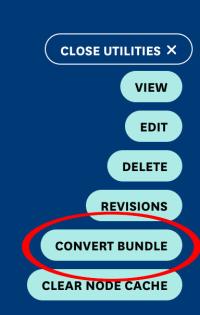
To convert a File to a File Archive, click on the Open Utilities.

Select Convert Bundle.
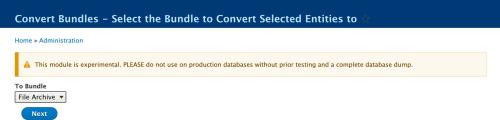
Confirm that the convert option says File Archive then click Next.
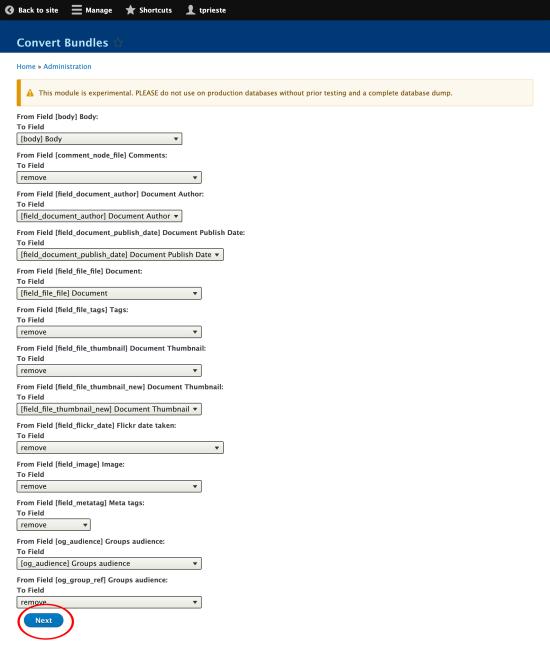
On the next screen, scroll past the field mapping section. All relevant fields should be mapped correctly by default. Click Next at the bottom of the page.
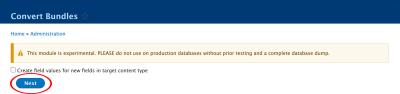
Do not check the box to create values where there were no values on the previous File. Click Next again.
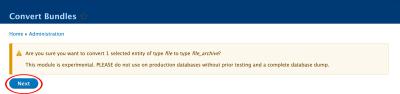
Confirm that you would like to start the conversion to the File Archive content type. Click Next a final time.
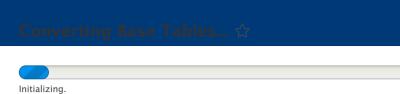
Once the initialization screen appears, you may close or navigate away from the page. The process will finish before the status bar updates so you do not need to wait for the page to finish updating.
After a few minutes, if you return to the node URL, you will see that the conversion has taken place and that the File Archive message is now on the page.
- After conversion, the file's URL structure has changed — any existing links pointing to the old file path will now be broken. Update any links you are aware of, such as those in body content, navigation, or other nodes. To catch links you may have missed, use your Siteimprove Quality Assurance report to identify and fix remaining broken links across your site.
-
How to Delete Files Properly
Follow these steps to ensure files are completely removed from your site and won't still appear in search engine results:
- Unpublish or edit any web page that links to the file.
- Remove the file from your page content.
- Delete the file node in Drupal.
- Confirm that no other pages link to the file.
- Contact us by submitting a ticket if you need help or if the file appears across multiple sites.
-
Monitor and Fix Broken Links After Cleanup
Broken links are a nearly inevitable side effect of this cleanup process.
Deleting a file node immediately breaks any link pointing to it. Archiving a file by converting it to the "File Archive" content type changes the node's URL structure — while internal links using the node ID path (e.g., /node/12345) should persist, any links pointing directly to the file path or permalink will break. Because we cannot predict how every file was linked across the CMS, body content, or external sources, you should assume some broken links will occur during conversion.
It is critical to repair these quickly to protect the visitor experience and prevent drops in search rankings.
Use your Siteimprove Quality Assurance report to identify and fix broken links as soon as they appear. Reminders will be sent every three weeks — please take action promptly when you receive them.
Still Have Questions?
If you need help with content exports, file organization, PDF remediation or converting documents to web pages, please submit a ticket.
Submit a Support Ticket Register for PDF Accessibility Working Sessions Learn to Make PDFS Accessible