
In order start building your course using the Kent State Online Framework, the Kent State Online template must first be imported into your online course shell in the Blackboard Learn learning management system.
If your Blackboard Learn course shell has already been created for you using the Kent State Online template during the course request process, skip ahead to the next topic in the Getting Started section or the other build sections depending on your course development needs.
Note: Whether you have an existing online course, taught during a previous term or are putting an existing face-to-face course online for the first time, it is recommended that you import the Kent State Online template into a blank course shell.
How to Import the Kent State Online Template
 How to Import the Design to Teach Template.pdf
Course Preparation Checklist
Before you start setting up your Blackboard course shell for course development, please make sure you have completed each of the following steps below.
- You have already contacted your Department Chair and have filled out a Distributed/Distance Learning Agreement form (DDLA)
- The DDLA form has been submitted to the Office of Continuing and Distance Education for record keeping
- You have spoken to your department scheduler and have confirmed that the Instructional Method of Delivery has been properly coded in the Banner registration system for online delivery. This will ensure that a blank course shell has been created for you in the Blackboard Learn learning management system.
- Log in to Blackboard Learn and check the My Institution or Courses tabs to confirm your blank course shell is available and that you are enrolled in the course with the Instructor role.
- You have downloaded the Design to Teach Template.zip file from Build section of the Kent State University Online Teaching website to your computer's hard drive.
Step 1. Log into Blackboard Learn and Open Your Course

Step 2: Locate the "Packages and Utilities" Link in the Control Panel
Click on the Packages and Utilities link in the Control Panel. These menu options expand and collapse to reveal or conceal additional options. Click as necessary to reveal the option of "Import Packages/View Logs" as pictured in Step 3.

Step 3: Click "Import Package / View Logs"
Click the link for Import Package / View Logs.

Step 4: Click "Import Package"
The Import Package / Views Logs page will appear on the main portion of the screen. Click the button in the upper left to Import Package

Step 5: Click "Browse" next to Select a Package in Section 2: Select A Package
A File Upload box will appear (pictured in Step 6).

Step 6: Navigate to the Design to Teach Template ZIP file you downloaded earlier
Select the file in the File Upload box, then click Open.

Step 7: Click "Select All" in Section 3: Select Course Materials
Some options beneath the "Settings" subheading will not be selected when you click Select All. Leave them unselected.

Step 8: Click Submit to Begin the Import Process

Step 9: Wait for the Import Process to Finish
The Design to Teach template is a small .zip file size that will import quickly into a blank course shell. The Blackboard Learn learning management system will automatically alert you to the progress of the import. You can also expect to receive an email in your @kent.edu email account when the import process has finished.

Troubleshooting
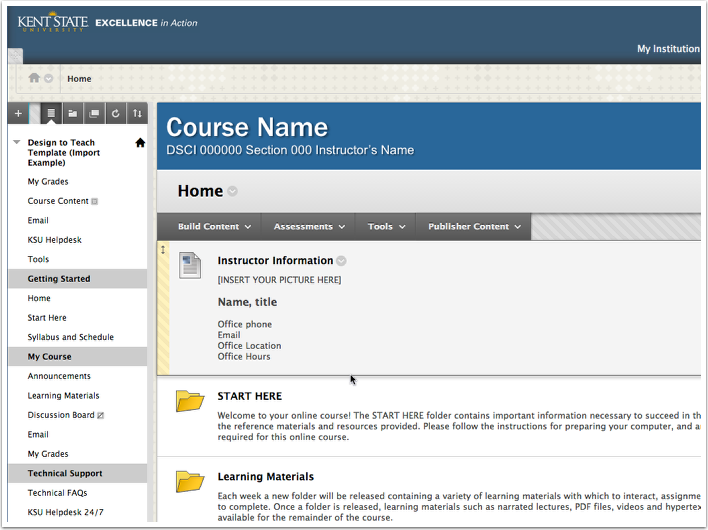
If you received a message that the import process was successful, but no content appears in your course when you log in, simply click the refresh button at the top of your navigation menu. Your course links and content should now be visisble.

Step 10: Next Steps for Building Your Online Course
Now that you have successfully imported the Design to Teach template into a blank course shell, you are ready to begin building your course using the Design to Teach Framework. To learn how to further prepare your course shell for building such as how to clean up the course menu, customize the course shell for your online course, and prepare the course for delivery, refer to the Build section of the Design to Teach Framework on Kent State University's Online Teaching website.
Need additional help?
Downloadable training documents, as well as links to support materials, can be found in the Resources for Faculty area of the Kent State Blackboard Online Learning website: http://www.kent.edu/blackboard/index.cfm
For assistance with Blackboard Learn please visit http://support.kent.edu and Submit a Ticket, or call 330-672-HELP (24x7). Faculty can also make an appointment with the Blackboard Support Center at 241 Stewart Hall by going to: http://www.kent.edu/is/resources/elearning/faculty-blackboard-support.cfm and clicking the "Request Form" link under the MAKE APPOINTMENT option.
